Warning: Attempt to read property "ID" on null in /home/marvioco/d.marvio.co/wp-content/plugins/elementor/core/base/document.php on line 356
Warning: Attempt to read property "ID" on null in /home/marvioco/d.marvio.co/wp-content/plugins/elementor/core/base/document.php on line 356 Elementor - MarviO Digital
We guarantee you premium support for every customer of MarviO Digital. Trust us, we know from first hand the true meaning of the word “Support”.
ADDRESS:
Jl. Danau Beratan VI No.2A, Jimbaran – BALI, 80361 Indonesia
Learn how to use Elementor to design and customize your WordPress website easily with its intuitive drag-and-drop editor.
Introductions
What is WordPress?
Elementor is a powerful drag-and-drop page builder for WordPress that lets you create and customize websites visually with a live editor, without needing advanced CSS or HTML skills. It provides a wide range of widgets, templates, and design options for building pages, posts, headers, footers, and other website elements.
How Does Elementor Page Builder Work?
Build Your Website Visually
Elementor uses a simple drag-and-drop interface that lets you build and customize your website visually. Add widgets such as headings, images, buttons, and more, then arrange them exactly where you want them. You can see your changes instantly without switching between the editor and preview
How To Install Elementor
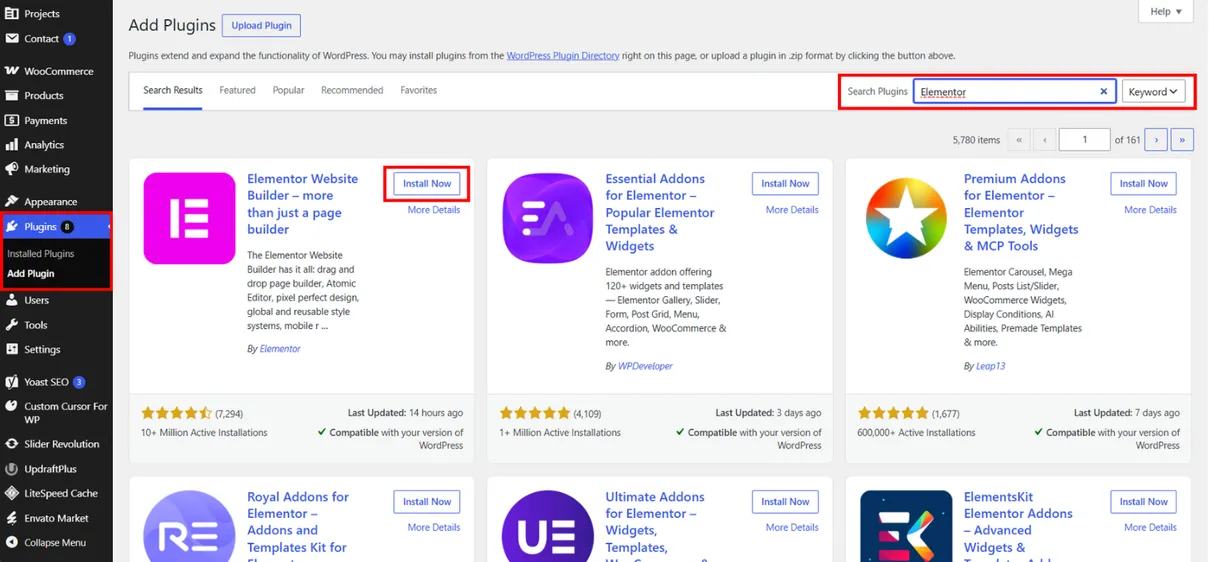
Click “Add Plugins” to open the WordPress plugin directory.
Search for “Elementor” using the search bar.
Find Elementor Website Builder, then click “Install Now” to install the plugin.
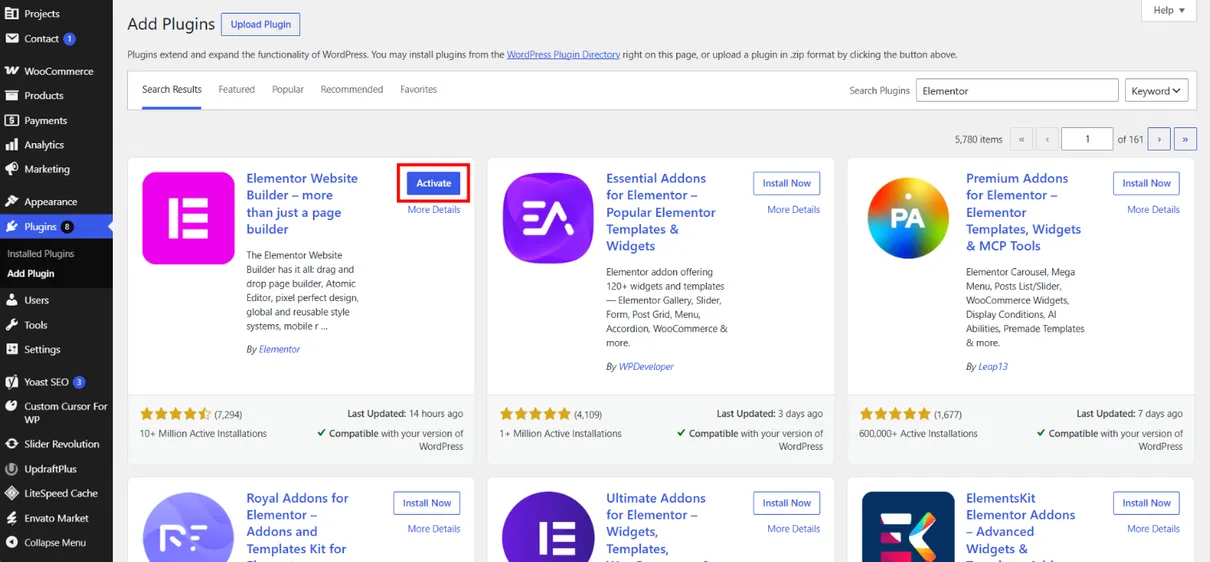
Once Elementor has finished installing, click “Activate” to enable the plugin.
How To Use Elementor
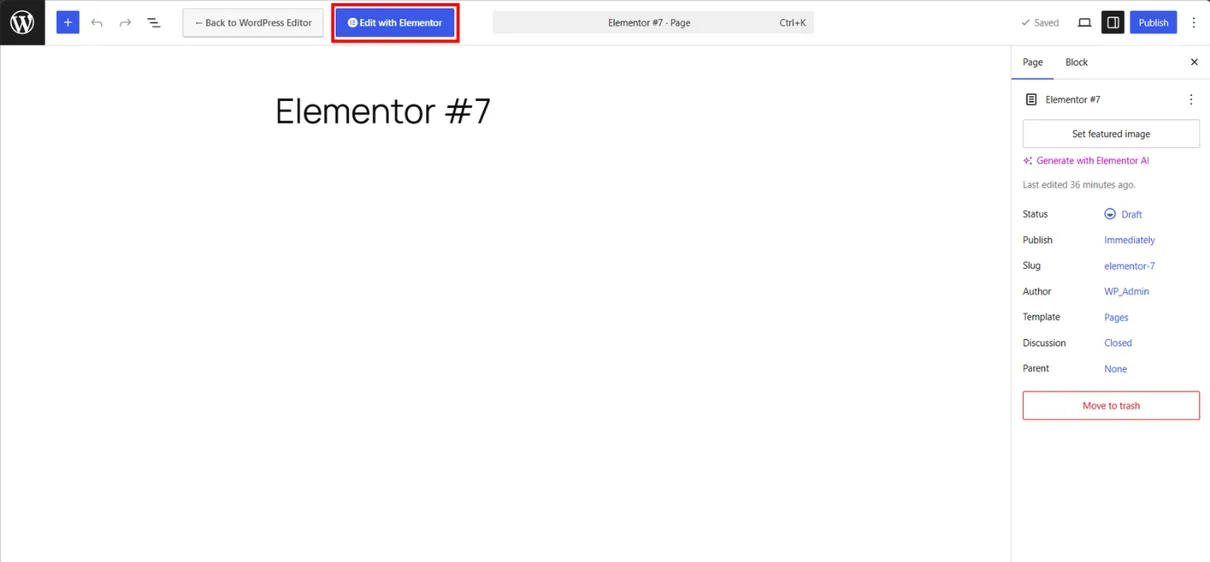
Click “Edit with Elementor” to open the Elementor editor and start building your page.
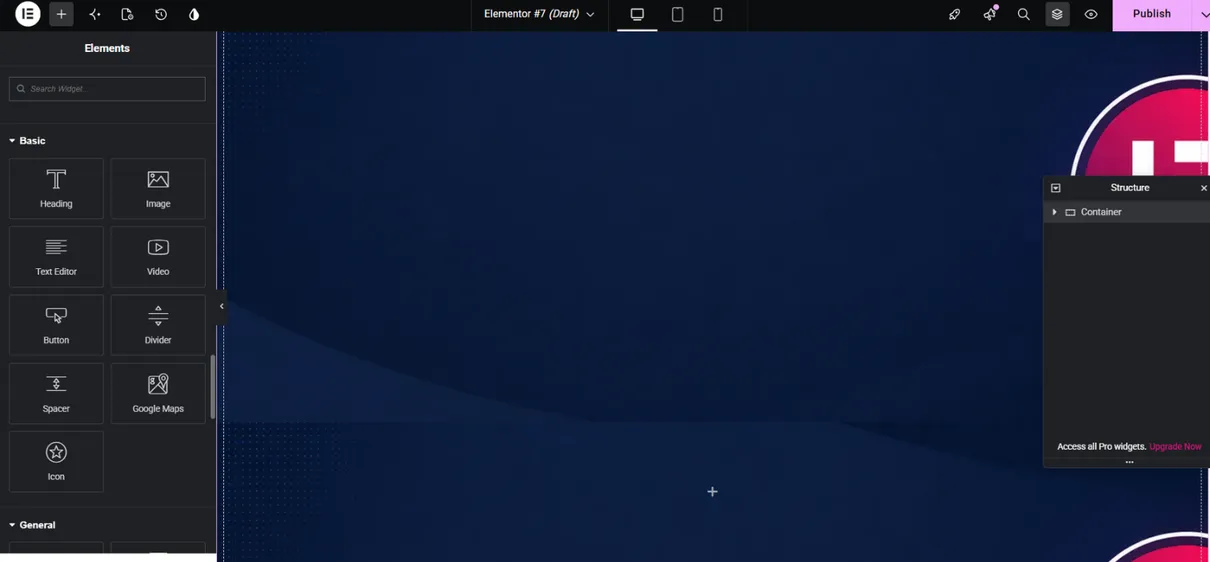
Choose a widget from the Elementor panel and drag it onto the page. Add elements such as headings, images, text, buttons, or other content based on your website needs.
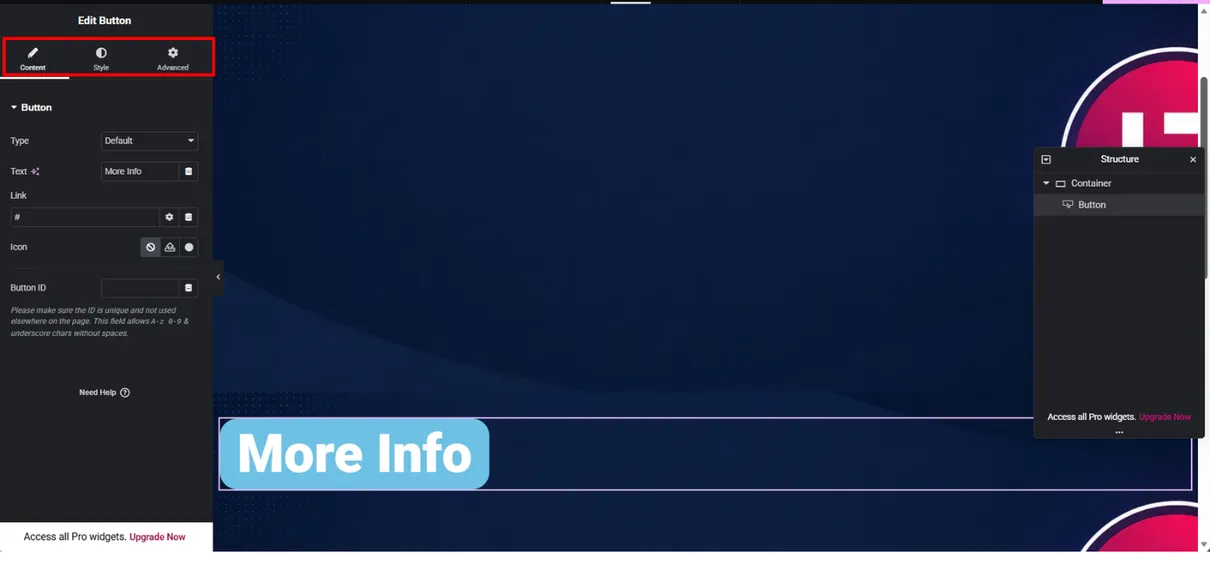
Customize the selected element using Elementor’s settings. Adjust the content, layout, colors, typography, spacing, and other style options to create a design that fits your website.
Theme Builder
Create and customize your website’s main parts, such as headers, footers, pages, and other templates, all from one place.
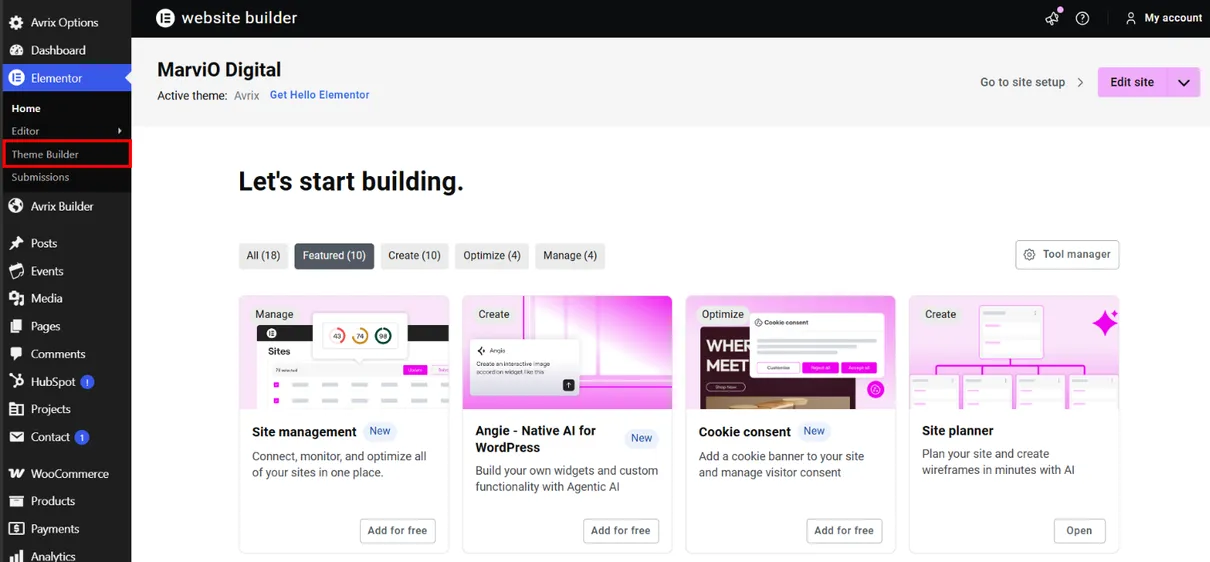
Click “Edit with Elementor” to open the Theme Builder and start customizing your website templates.
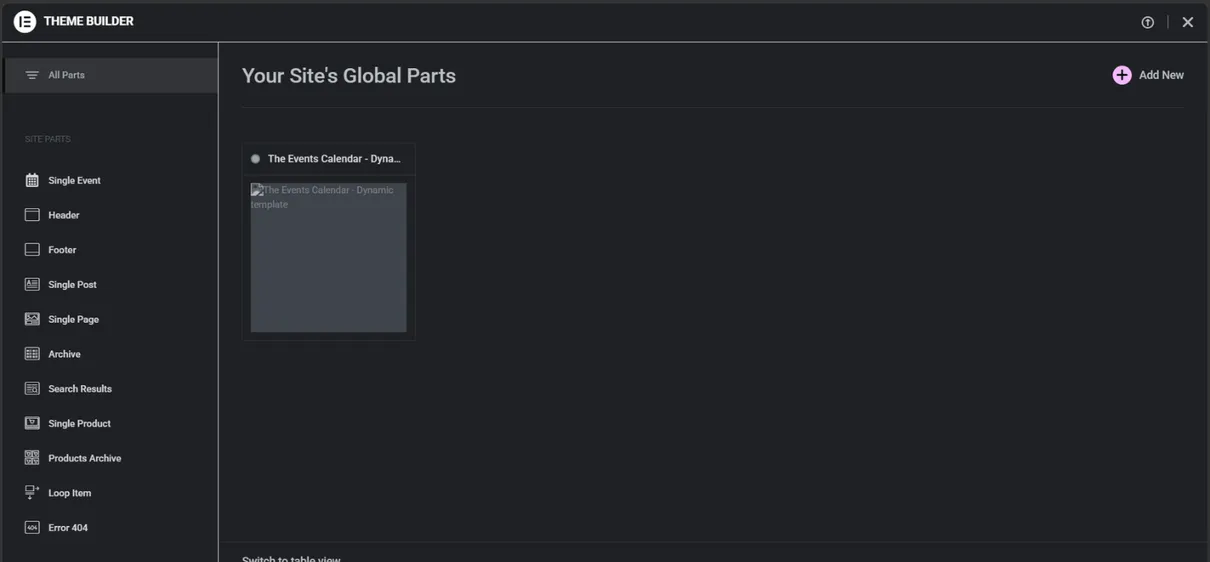
Here, you can create and edit templates for headers, footers, pages, and other parts of your website.
Learn how to use Elementor to design and customize your WordPress website easily with its intuitive drag-and-drop editor.
Introductions
What is Elementor?
Elementor is a powerful drag-and-drop page builder for WordPress that lets you create and customize websites visually with a live editor, without needing advanced CSS or HTML skills. It provides a wide range of widgets, templates, and design options for building pages, posts, headers, footers, and other website elements.
How Does Elementor Page Builder Work?
Build Your Website Visually
Elementor uses a simple drag-and-drop interface that lets you build and customize your website visually. Add widgets such as headings, images, buttons, and more, then arrange them exactly where you want them. You can see your changes instantly without switching between the editor and preview
How To Install Elementor
Click “Add Plugins” to open the WordPress plugin directory.
Search for “Elementor” using the search bar.
Find Elementor Website Builder, then click “Install Now” to install the plugin.
Once Elementor has finished installing, click “Activate” to enable the plugin.
How To Use Elementor
Click “Edit with Elementor” to open the Elementor editor and start building your page.
Choose a widget from the Elementor panel and drag it onto the page. Add elements such as headings, images, text, buttons, or other content based on your website needs.
Customize the selected element using Elementor’s settings. Adjust the content, layout, colors, typography, spacing, and other style options to create a design that fits your website.
Theme Builder
Create and customize your website’s main parts, such as headers, footers, pages, and other templates, all from one place.
Click “Edit with Elementor” to open the Theme Builder and start customizing your website templates.
Here, you can create and edit templates for headers, footers, pages, and other parts of your website.