Warning: Attempt to read property "ID" on null in /home/marvioco/d.marvio.co/wp-content/plugins/elementor/core/base/document.php on line 356
Warning: Attempt to read property "ID" on null in /home/marvioco/d.marvio.co/wp-content/plugins/elementor/core/base/document.php on line 356 WooCommerce - MarviO Digital
We guarantee you premium support for every customer of MarviO Digital. Trust us, we know from first hand the true meaning of the word “Support”.
ADDRESS:
Jl. Danau Beratan VI No.2A, Jimbaran – BALI, 80361 Indonesia
Learn how to set up and manage your online store with WooCommerce, from products and orders to payments and store settings.
Introductions
What is WooCommerce?
WooCommerce is a free, open-source eCommerce plugin for WordPress that allows you to create and manage an online store. It provides essential tools for managing products, prices, payments, shipping, orders, and customers, making it easier to build and run an online store directly from your WordPress website.
Home
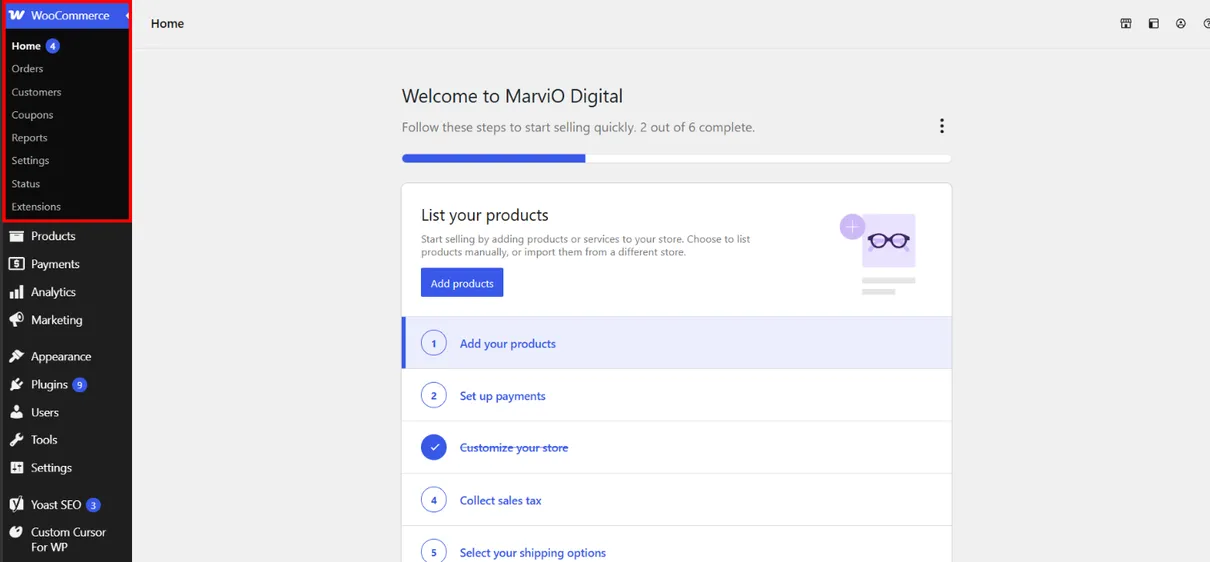
Get an overview of your online store, monitor key activities, and access essential WooCommerce tools from one central dashboard.
Orders
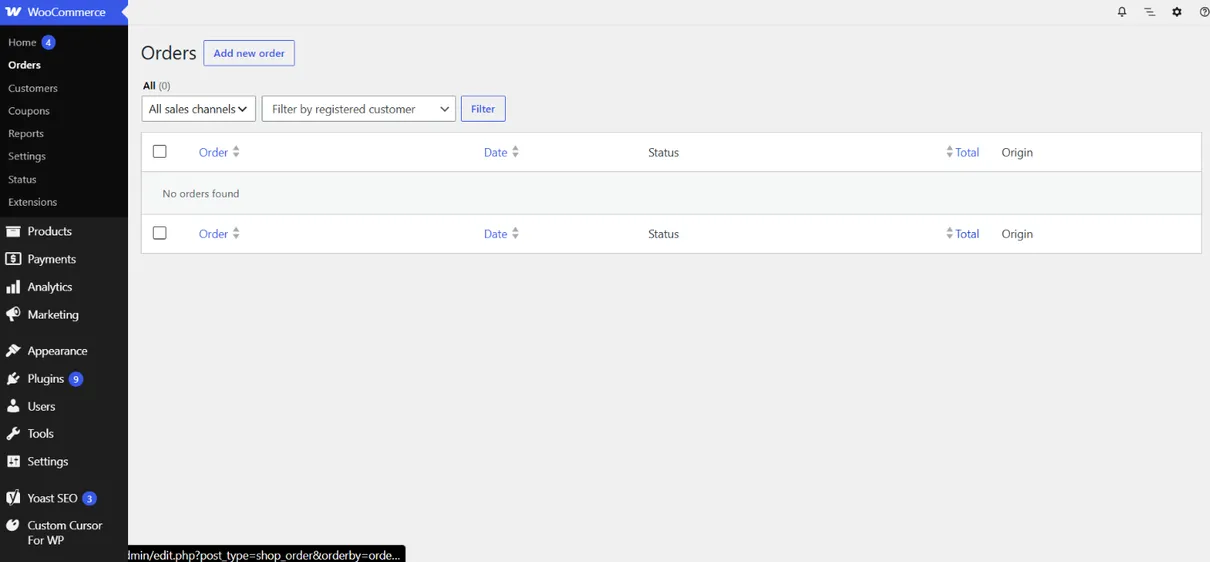
View and manage customer orders, update order statuses, and review payment and shipping details from one place.
Products
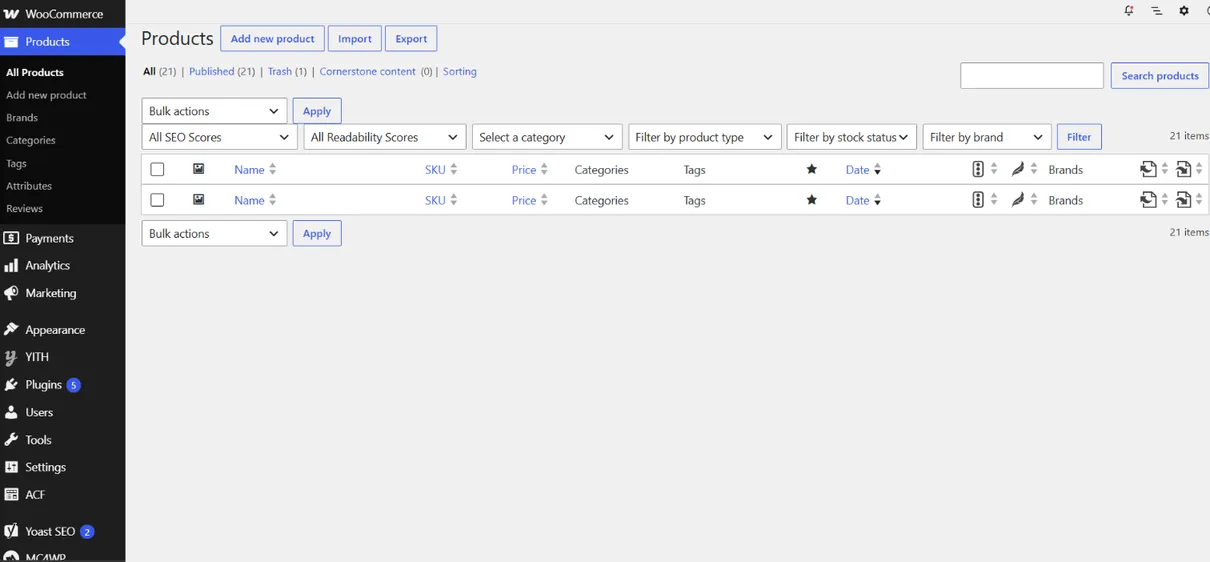
Add, edit, and manage products, including prices, images, inventory, and categories in your online store.
Customers
View and manage customer information, including customer accounts, orders, and basic customer activity from your online store.
Reports
Monitor your store’s sales, orders, revenue, products, and customer activity through useful reports and performance insights.
Settings
Configure essential store options, including general settings, payments, shipping, accounts, emails, and other options that control how your WooCommerce store operates.
Payments
Manage and configure the payment methods available to customers in your WooCommerce store, making it easy to choose and manage how customers pay.
Home
WooCommerce Home Dashboard
The WooCommerce Home dashboard provides a central overview of your online store, helping you monitor store activity and access important WooCommerce features. From this page, you can review sales performance, check orders and products, view store notifications, complete setup tasks, and access useful tools to help manage and grow your online store.
Orders
Manage WooCommerce Orders
The Orders section helps you manage customer purchases from your online store. You can view order details, check customer and payment information, update order statuses, and manage orders from purchase to completion.
Products
Manage WooCommerce Products
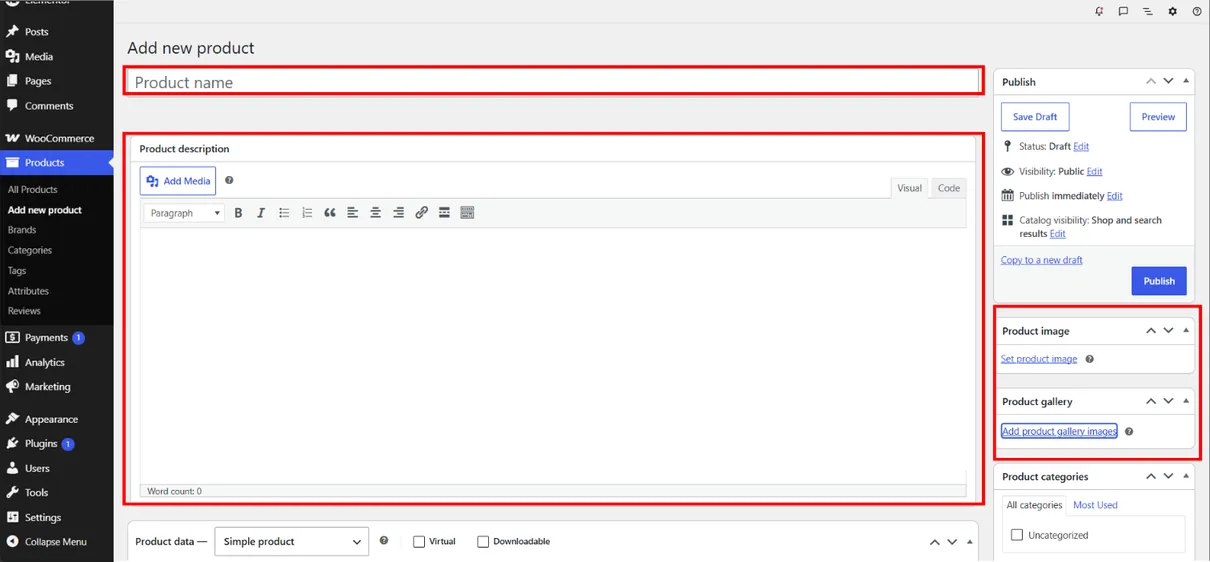
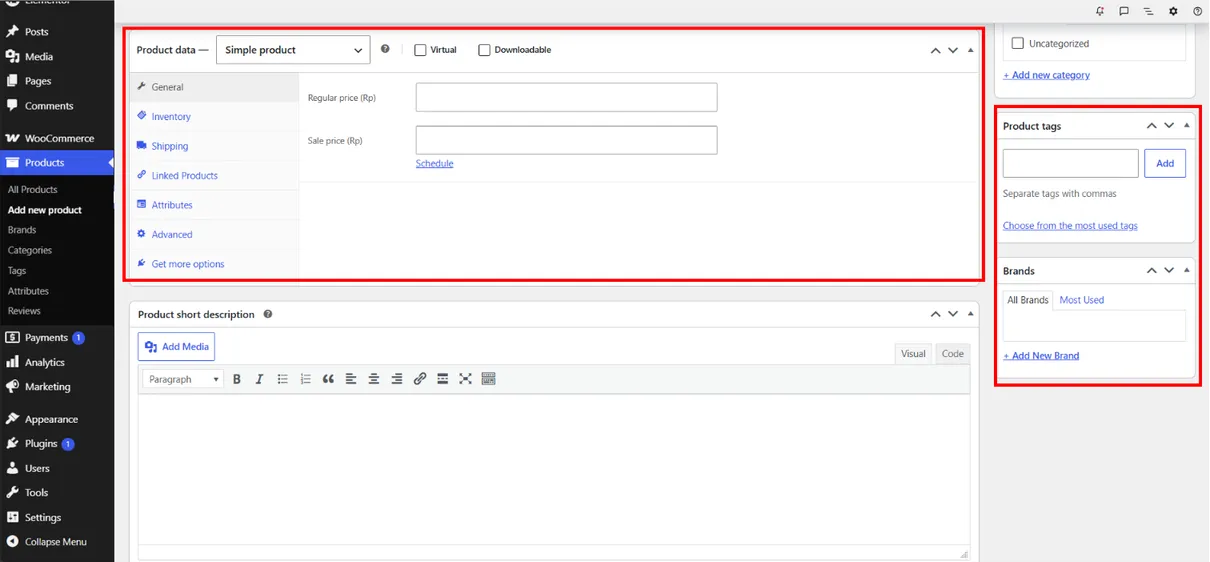
The Products section allows you to add, edit, and manage products in your online store. You can set product names, descriptions, prices, images, inventory, categories, and other details to keep your product catalog organized and ready for customers.
Add and Manage WooCommerce Products
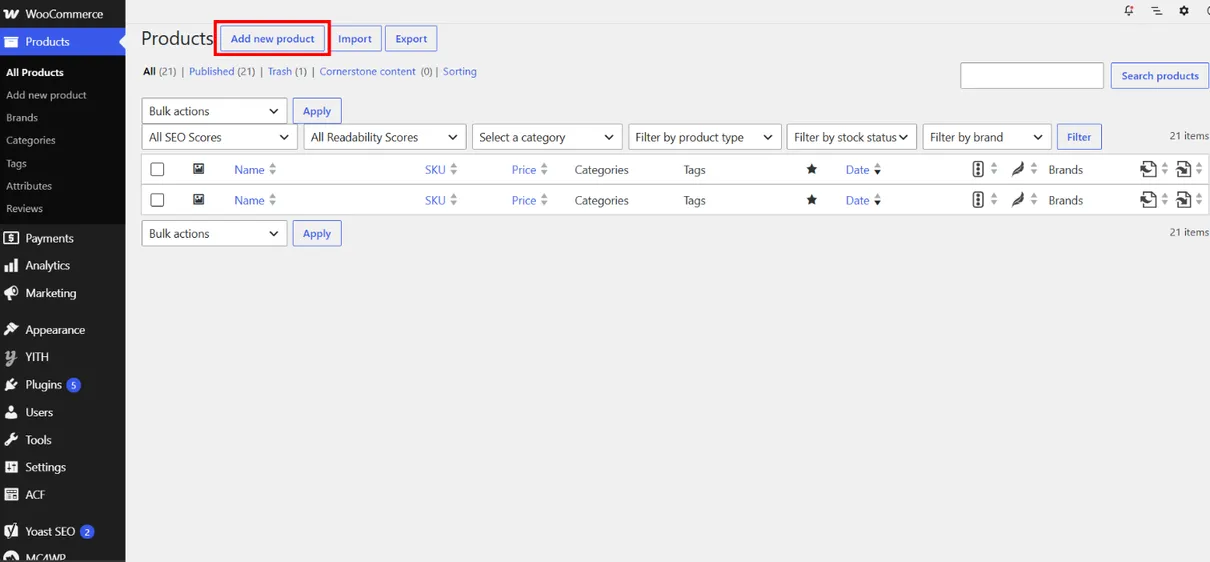
Go to “Products” from the WordPress dashboard and click “Add New” to create a new WooCommerce product.
Enter the product name and description, then add important product information such as price, inventory, categories, and product images to complete your product details.
Review all product information and settings, then click “Publish” to make your product available in your WooCommerce online store.
Customers
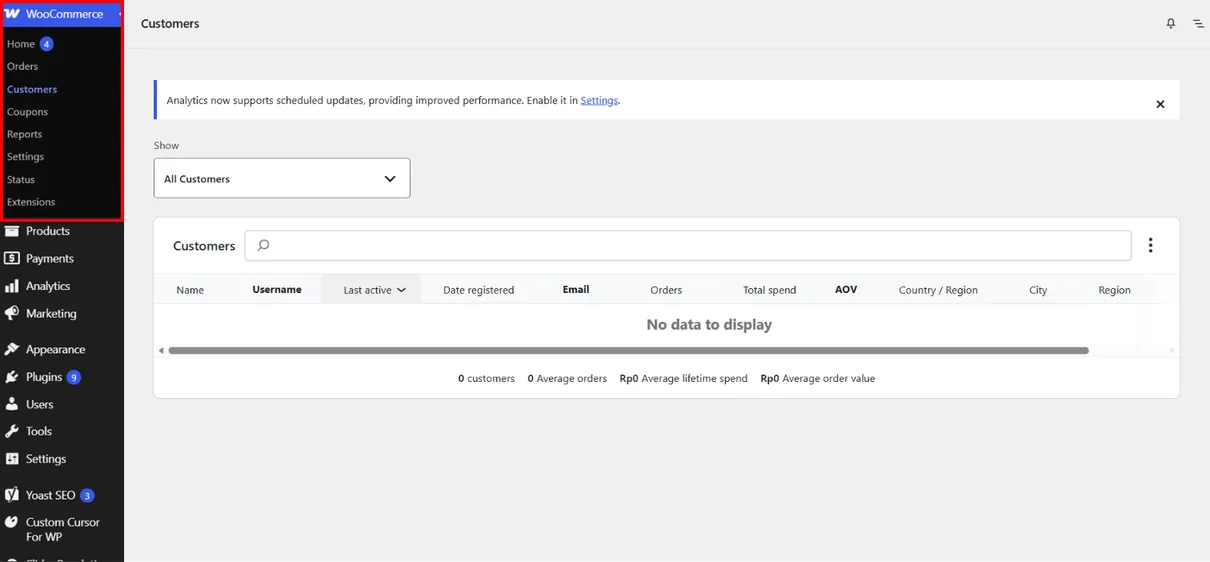
Manage WooCommerce Customers
The Customers section allows you to view and manage customer information from your online store. You can review customer accounts, contact details, order history, and basic purchasing activity to better understand and manage your customers.
Reports
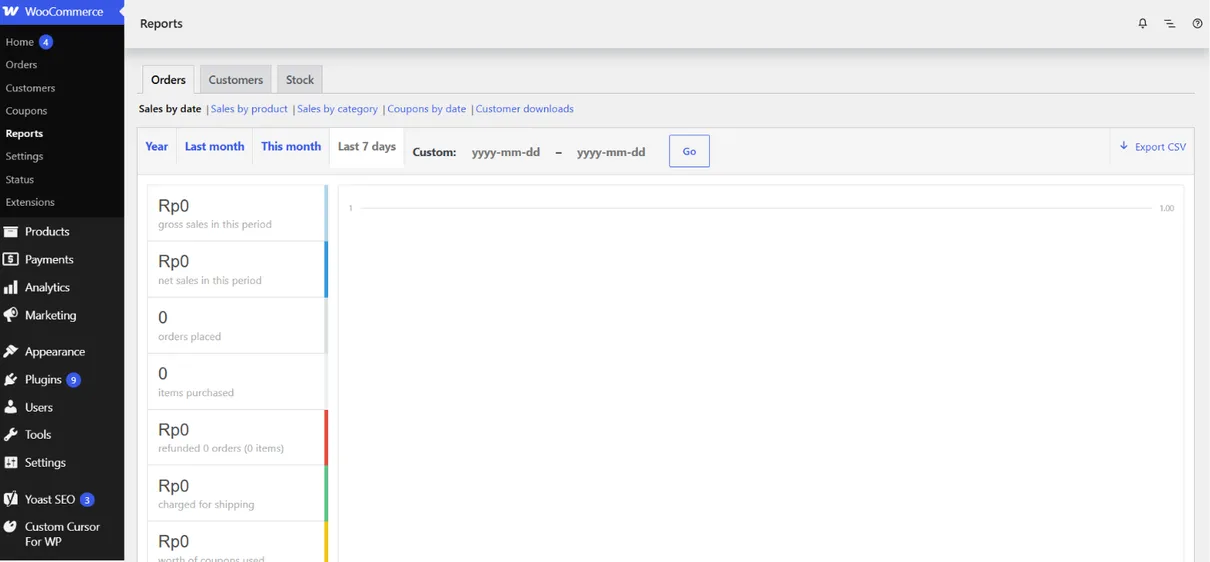
Track WooCommerce Store Reports
The Reports section provides insights into your store’s performance by showing important data such as sales, orders, revenue, products, and customer activity. These reports help you monitor store performance and understand your online store’s sales trends.
Settings
Configure WooCommerce Store Settings
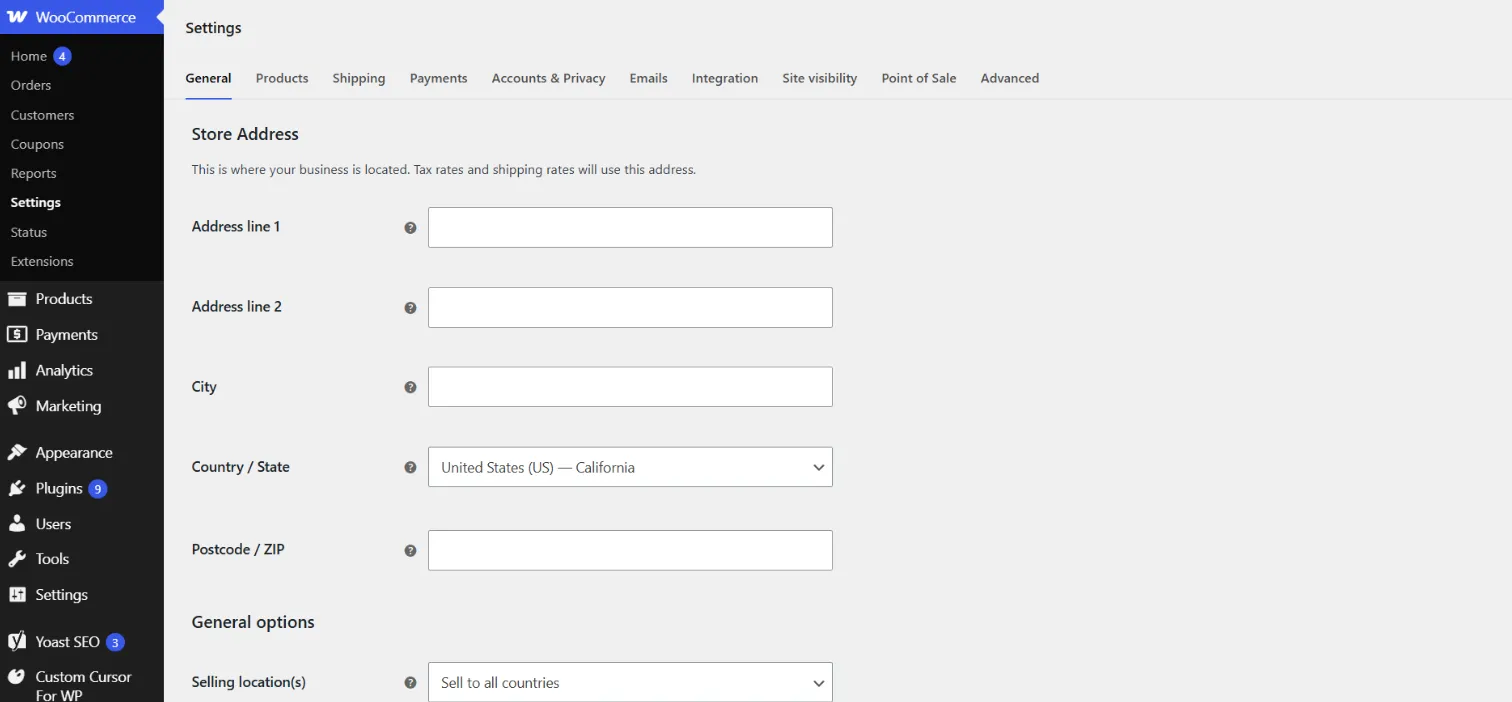
The WooCommerce Settings section allows you to configure essential options for your online store, including general settings, products, payments, shipping, accounts, emails, and advanced store features. These settings control how your WooCommerce store operates and how customers interact with it.
Payments
Manage WooCommerce Payments
The Payments section allows you to configure and manage payment methods for your online store. You can enable available payment gateways and set up how customers pay for their orders during checkout.
How to Add a Payment Method in WooCommerce
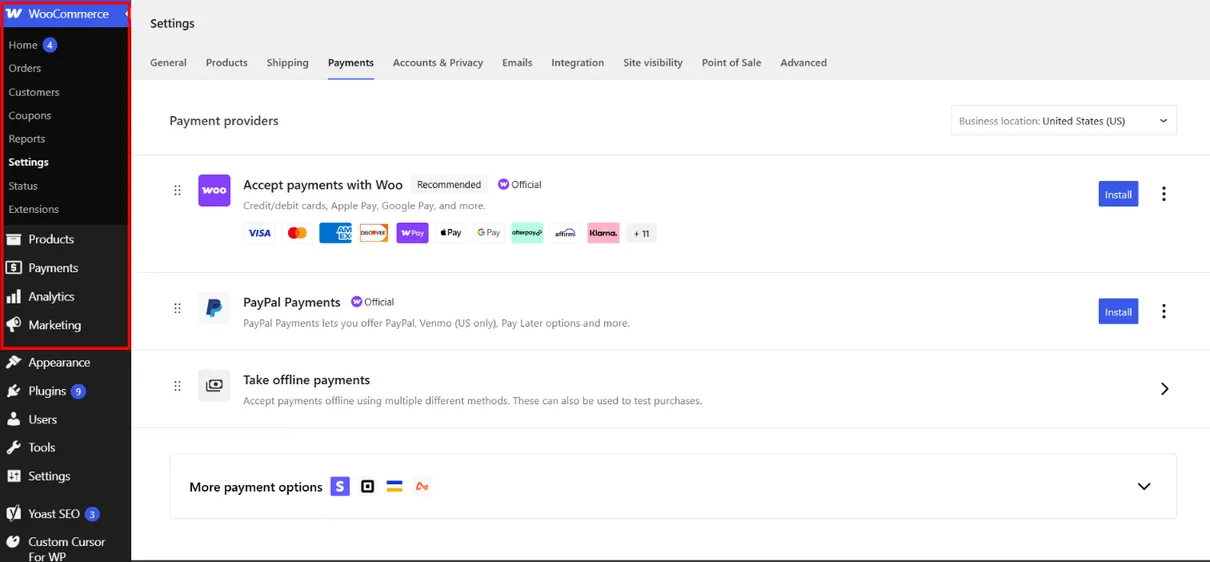
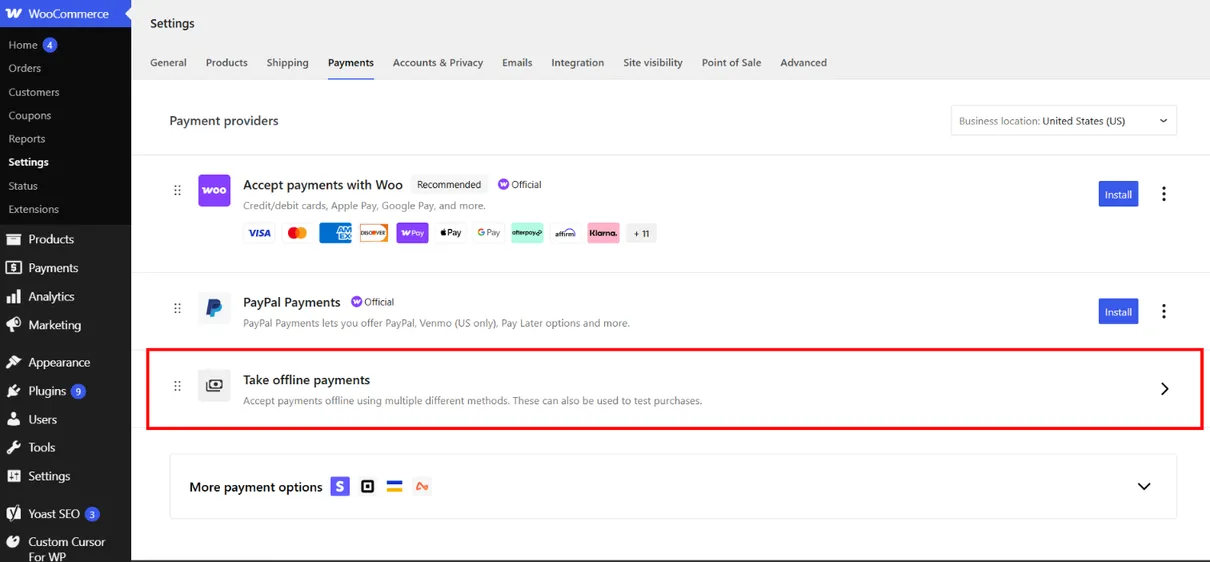
Go to “WooCommerce → Settings → Payments” from your WordPress dashboard. Find the available payment methods and select take offline payments.
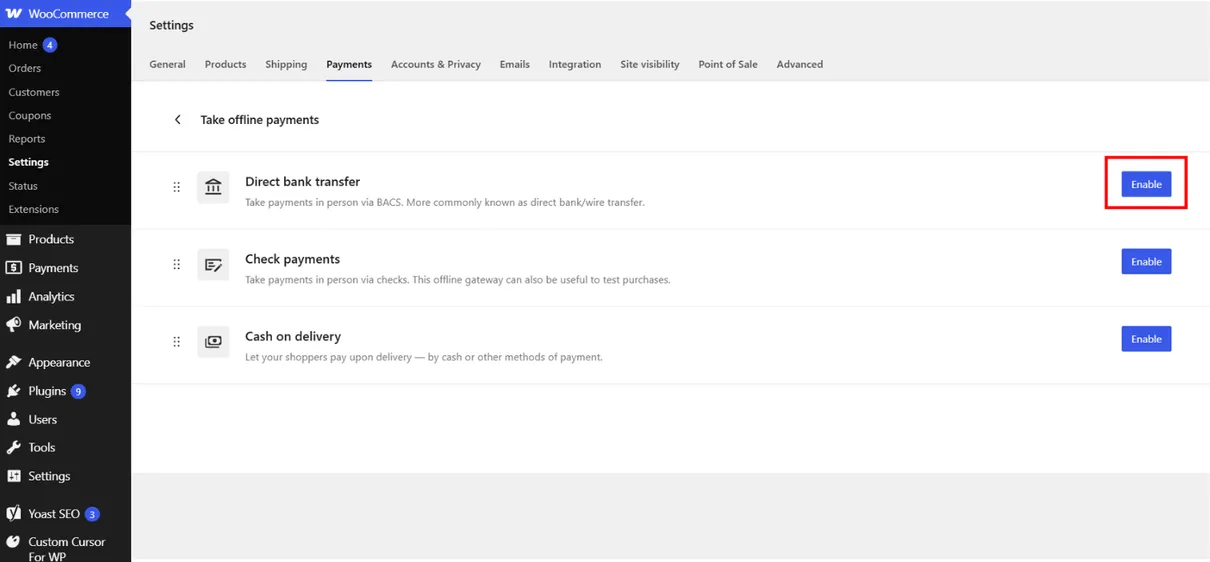
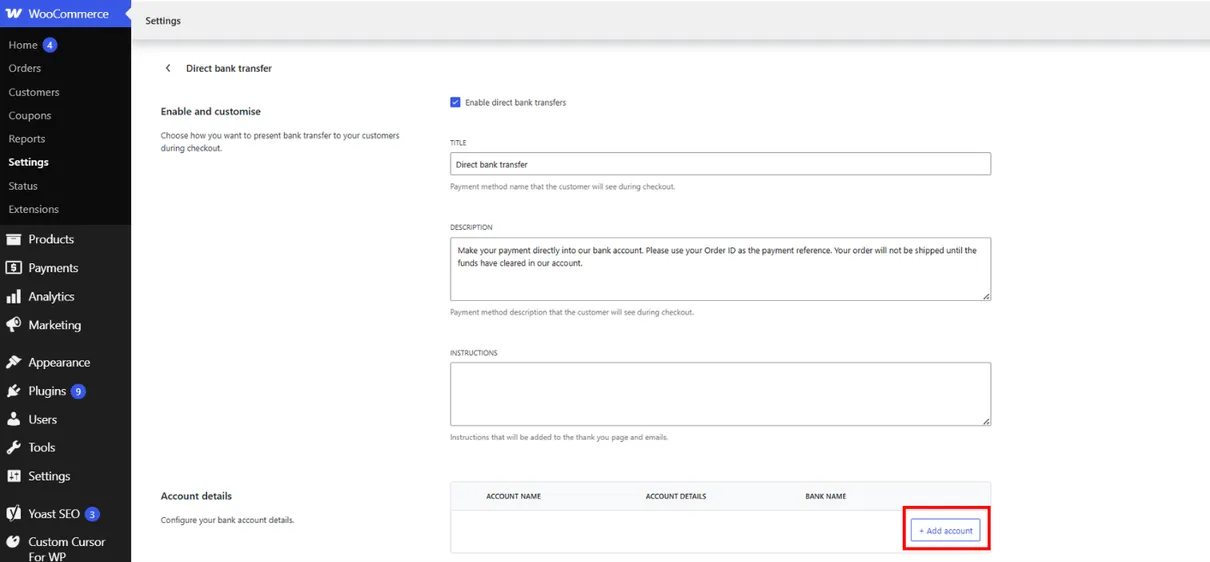
Find the bank transfer payment method and click “Manage” to open its settings. Review the payment instructions and bank account options before adding your business banking information.
Scroll to the “Account details” section and click “Add account” to enter your business bank account information for receiving direct bank transfer payments.
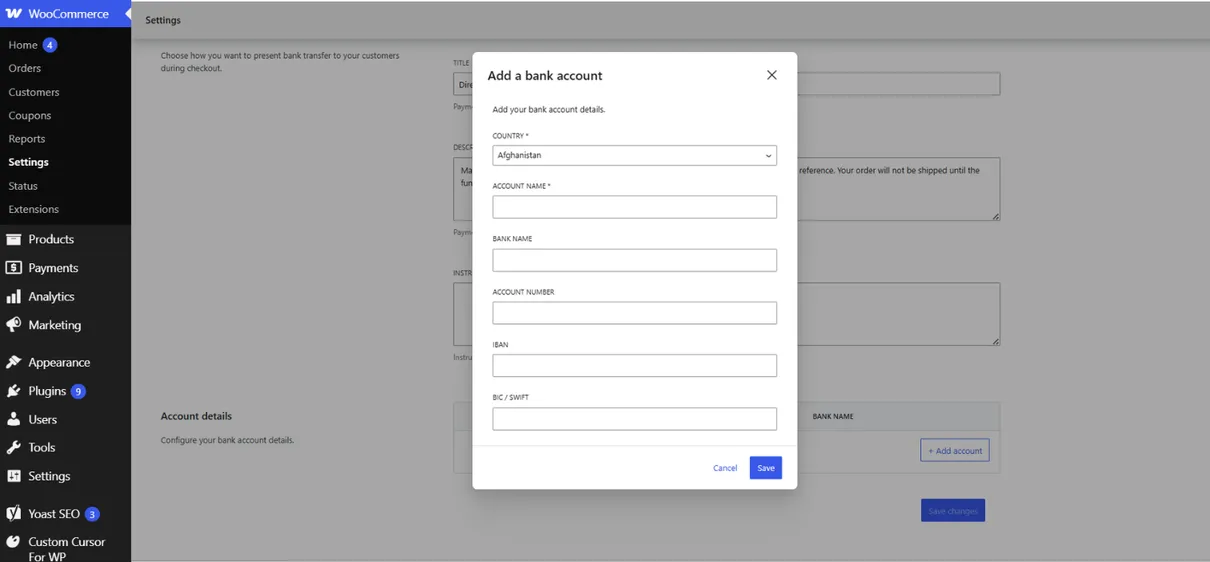
Enter the required bank information, including the account name, IBAN, SWIFT/BIC, bank name, address, and currency. Review the details carefully, then click “Save” to save the bank account information.
Learn how to set up and manage your online store with WooCommerce, from products and orders to payments and store settings.
Introductions
What is WooComerce?
WooCommerce is a free, open-source eCommerce plugin for WordPress that allows you to create and manage an online store. It provides essential tools for managing products, prices, payments, shipping, orders, and customers, making it easier to build and run an online store directly from your WordPress website.
Home
Get an overview of your online store, monitor key activities, and access essential WooCommerce tools from one central dashboard.
Orders
View and manage customer orders, update order statuses, and review payment and shipping details from one place.
Products
Add, edit, and manage products, including prices, images, inventory, and categories in your online store.
Customers
View and manage customer information, including customer accounts, orders, and basic customer activity from your online store.
Reports
Monitor your store’s sales, orders, revenue, products, and customer activity through useful reports and performance insights.
Settings
Configure essential store options, including general settings, payments, shipping, accounts, emails, and other options that control how your WooCommerce store operates.
Payments
Manage and configure the payment methods available to customers in your WooCommerce store, making it easy to choose and manage how customers pay.
Home
WooCommerce Home
The WooCommerce Home dashboard provides a central overview of your online store, helping you monitor store activity and access important WooCommerce features. From this page, you can review sales performance, check orders and products, view store notifications, complete setup tasks, and access useful tools to help manage and grow your online store.
Orders
Manage WooCommerce Orders
The Orders section helps you manage customer purchases from your online store. You can view order details, check customer and payment information, update order statuses, and manage orders from purchase to completion.
Products
Manage WooCommerce Products
The Products section allows you to add, edit, and manage products in your online store. You can set product names, descriptions, prices, images, inventory, categories, and other details to keep your product catalog organized and ready for customers.
Add and Manage WooCommerce Products
Go to “Products” from the WordPress dashboard and click “Add New” to create a new WooCommerce product.
Enter the product name and description, then add important product information such as price, inventory, categories, and product images to complete your product details.
Review all product information and settings, then click “Publish” to make your product available in your WooCommerce online store.
Customers
Manage WooCommerce Customers
The Customers section allows you to view and manage customer information from your online store. You can review customer accounts, contact details, order history, and basic purchasing activity to better understand and manage your customers.
Reports
Track WooCommerce Store Reports
The Reports section provides insights into your store’s performance by showing important data such as sales, orders, revenue, products, and customer activity. These reports help you monitor store performance and understand your online store’s sales trends.
Settings
Configure WooCommerce Store Settings
The WooCommerce Settings section allows you to configure essential options for your online store, including general settings, products, payments, shipping, accounts, emails, and advanced store features. These settings control how your WooCommerce store operates and how customers interact with it.
Payments
Manage WooCommerce Payments
The Payments section allows you to configure and manage payment methods for your online store. You can enable available payment gateways and set up how customers pay for their orders during checkout.
How to Add a Payment Method in WooCommerce
Go to “WooCommerce → Settings → Payments” from your WordPress dashboard. Find the available payment methods and select take offline payments.
Find the bank transfer payment method and click “Manage” to open its settings. Review the payment instructions and bank account options before adding your business banking information.
Scroll to the “Account details” section and click “Add account” to enter your business bank account information for receiving direct bank transfer payments.
Enter the required bank information, including the account name, IBAN, SWIFT/BIC, bank name, address, and currency. Review the details carefully, then click “Save” to save the bank account information.